
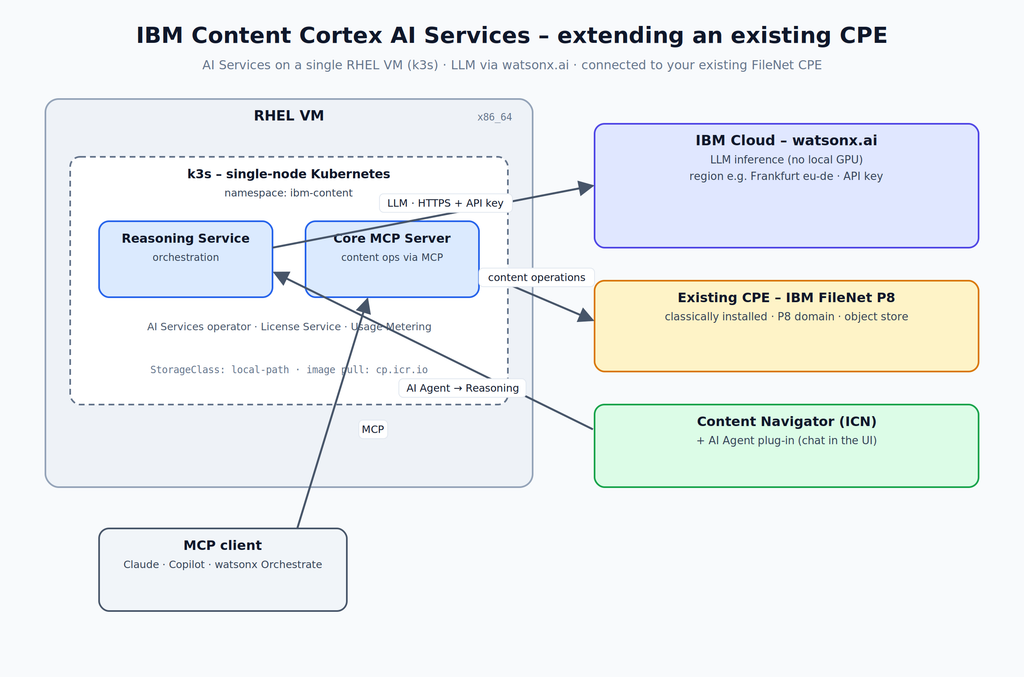
IBM Content Cortex 26 ships an AI layer – a Reasoning Service and a Core MCP Server – that lets any AI runtime work with governed content. The good news for existing FileNet shops: you don’t have to rebuild your platform to try it. This walkthrough bolts the AI Services onto an already-running CPE, uses watsonx.ai in IBM Cloud as the LLM, and runs everything on a single, modest RHEL VM. It’s written for ECM folks who know FileNet but are newer to Kubernetes.
The one thing to verify first
Everything here is straightforward except a single integration point: the content connection to your existing CPE. The AI Services’ auto-migrate convenience only applies to a container-based CPE in the same namespace. Because your CPE is external/classically installed, you fill that connection in by hand – and you should confirm this configuration is supported for your exact iFix level before relying on it beyond a lab.
1. What you need before you start
- An IBM Entitlement Key from the IBM Container Library – the password for registry
cp.icr.io(usercp). - A watsonx.ai service on IBM Cloud: a Project ID, an IBM Cloud API key, the regional endpoint (e.g. Frankfurt
eu-de), and a validated model ID from IBM’s Content Cortex model list. - Your existing CPE connection details: CPE/P8 URL and port, P8 domain, target object store, and a least-privilege service account.
- Your existing ICN identity provider (the same OIDC/OAuth IdP), so tokens line up for the AI Agent plug-in.
VM sizing
Because the CPE is external and the LLM inference runs in IBM Cloud, this VM stays small – no GPU, no CPE footprint:
| Component | vCPU | RAM | Disk (SSD) |
|---|---|---|---|
| AI Services (Reasoning + MCP Server) + k3s | 4–6 | 16–24 GB | 60–80 GB |
Outbound HTTPS is required to *.ml.cloud.ibm.com / *.dataplatform.cloud.ibm.com (watsonx), iam.cloud.ibm.com (token exchange), cp.icr.io (image pull), plus reachability to your CPE.
Why RHEL
For the containerised AI Services, IBM certifies the Kubernetes platform, not really the host OS – the images are UBI-based. So the choice is about ecosystem fit, and Red Hat is IBM’s primary, best-documented Content Cortex path (and consistent with OpenShift if you go to production later). For a lab, a free Red Hat Developer Subscription works, or a RHEL-compatible rebuild such as Rocky or AlmaLinux. SUSE + Rancher/RKE2 is a valid Certified-Kubernetes route, but off the beaten path for IBM ECM – pick it only if the target customer already runs it.
2. Prepare the RHEL VM
RHEL-specific prep for k3s
# SELinux: leave it enforcing - the k3s installer pulls in the k3s-selinux policy
# automatically (needs container-selinux from the RHEL repos).

# firewalld can conflict with k3s networking. Simplest path for a single-node lab:
sudo systemctl disable --now firewalld
# ...or keep it on and open: 6443/tcp (API), 8472/udp (flannel VXLAN), 10250/tcp (kubelet).

# NetworkManager: on some RHEL cloud images nm-cloud-setup breaks k3s routing. If present:
sudo systemctl disable --now nm-cloud-setup.service nm-cloud-setup.timer 2>/dev/null || true
Install k3s (single-node; bundles containerd + local-path storage)
curl -sfL https://get.k3s.io | sh -
mkdir -p ~/.kube
sudo cp /etc/rancher/k3s/k3s.yaml ~/.kube/config
sudo chown "$(id -u):$(id -g)" ~/.kube/config
export KUBECONFIG=~/.kube/config
kubectl get nodes
kubectl get storageclass          # 'local-path' (default) must be present - covers all PVCs
Why k3s here
k3s is a CNCF-certified Kubernetes distribution that ships containerd, an ingress controller and a working
local-pathStorageClass out of the box. That last part removes the biggest first-timer hurdle: dynamic storage provisioning for the PersistentVolumeClaims the AI Services create.
Tools
- Helm v4.x – required (install guide).
- Python 3.12+ – for the DevOps scripts.
- kubectl – provided by k3s.
3. Prepare the cluster
kubectl create namespace ibm-content

kubectl create secret docker-registry ibm-entitlement-key \
  --docker-server=cp.icr.io --docker-username=cp \
  --docker-password="$IBM_ENTITLEMENT_KEY" --namespace ibm-content

helm repo add ibm-content-cortex https://ibm-ecm.github.io/ibm-content-cortex-containers
helm repo update
helm search repo ibm-content-cortex     # read the EXACT chart names/versions here
Chart names
Take chart names from the
helm search repooutput – IBM names them slightly differently between GA and iFix releases.
4. Get the assets and install the operators
git clone --branch 26.0.0 --depth 1 \
  https://github.com/ibm-ecm/ibm-content-cortex-containers.git
cd ibm-content-cortex-containers/scripts
python3 -m venv .venv && source .venv/bin/activate
python3 -m pip install --upgrade pip
python3 -m pip install -r requirements.txt
Install only what the AI Services need – no content operator, since your CPE is external. Required: the AI Services operator, plus License Service and Usage Metering.
python3 deploy_operator.py     # guided: select AI Services + License Service + Usage Metering

# or directly (use names from `helm search repo`):
# helm install ai-services-operator ibm-content-cortex/ibm-ccx-ai-services-operator -n ibm-content
# helm install license-service      ibm-content-cortex/<license-chart>             -n ibm-content
# helm install usage-metering       ibm-content-cortex/<metering-chart>            -n ibm-content

kubectl get pods -n ibm-content -w     # wait until operator pods are Running
If validation asks for the content operator
If
deploy_operator.pyorprerequisites.py validatereports that the shared content operator/CRDs are also required, install the content operator too – but without creating a Content CR. It can be present without deploying a CPE.
5. Configure the AI Services (watsonx + existing CPE + IdP)
Generate the property files, then edit them – don’t hand-write the CRs.
python3 prerequisites.py gather # creates property files in propertyFile/Edit these files in propertyFile/:
| File | Purpose | For this setup |
|---|---|---|
ccx-deployment.toml | General deployment settings | namespace, endpoints, profile |
aiservices_providers.toml | LLM provider + auth | watsonx.ai (see below) |
aiservices_integration.toml | Content connection | your existing CPE – the verify point |
ccx-identity_provider.toml | Identity provider (OIDC/OAuth) | same IdP as your ICN |
Test CPE reachability from inside the cluster first
kubectl run netcheck --rm -it --image=registry.access.redhat.com/ubi9/ubi-minimal \
  -n ibm-content --restart=Never -- \
  bash -c 'curl -ksvo /dev/null https://<CPE_HOST>:<CPE_PORT>/ ; echo exit=$?'
watsonx.ai provider (illustrative)
The authoritative file is what gather generates; this shows which values to have ready and roughly where they go.
provider = "watsonx.ai"

[watsonx]
api_key    = "REPLACE_WITH_IBM_CLOUD_API_KEY"     # Cloud -> IAM -> API keys
project_id = "REPLACE_WITH_WATSONX_PROJECT_ID"    # dataplatform.cloud.ibm.com -> project -> Manage
url        = "https://eu-de.ml.cloud.ibm.com"     # regional endpoint, e.g. Frankfurt
model_id   = "REPLACE_WITH_VALIDATED_WATSONX_MODEL_ID"
Existing CPE connection (illustrative)
[content]
cpe_url      = "https://REPLACE_CPE_HOST:REPLACE_CPE_PORT"
p8_domain    = "REPLACE_P8_DOMAIN"
object_store = "REPLACE_OBJECT_STORE_SYMBOLIC_NAME"
service_user = "REPLACE_SERVICE_USER"
# The password/secret is injected via a Kubernetes Secret, not stored in clear text here.
Then generate and validate:
python3 prerequisites.py generate      # produces, in generatedFolder/:
#   ibm-ai-services-integration-config.yaml   (ConfigMap: IdP + content connection)
#   ibm-providers-config-secret.yaml          (Secret: watsonx provider)
#   ibm_ai_services_cr_production.yaml         (Custom Resource)
python3 prerequisites.py validate      # pre-flight: cluster, storage, LLM, content connection
6. Deploy and verify
kubectl apply -f generatedFolder/ibm-ai-services-integration-config.yaml -n ibm-content
kubectl apply -f generatedFolder/ibm-providers-config-secret.yaml        -n ibm-content
kubectl apply -f generatedFolder/ibm_ai_services_cr_production.yaml       -n ibm-content

kubectl get pods -n ibm-content -w     # Reasoning Service + Core MCP Server must become Ready
7. Use it
Talk to the MCP Server directly
The Core MCP Server exposes content operations (search, classification, extraction, redaction, legal hold) over the Model Context Protocol. Any MCP client can connect – Claude, Copilot, watsonx Orchestrate, ChatGPT.
kubectl get svc -n ibm-content
kubectl port-forward -n ibm-content svc/<mcp-server-service> 8080:<port>
Register that endpoint in your MCP client (URL + auth token per your IdP), then issue a natural-language request that triggers a content operation and watch the pod logs to trace: MCP tool-call → CPE → watsonx reasoning.
AI Agent chat inside your existing ICN
To get the natural-language chat in the UI, register the AI Agent plug-in in your existing Content Navigator. That’s an ICN-side step (plug-in registration in the admin desktop), not a container action.
8. Troubleshooting
python3 must_gather.py --verbose                 # collect logs, CR status, events

kubectl describe pod <pod> -n ibm-content        # ImagePullBackOff -> pull secret / entitlement
kubectl get pvc -n ibm-content                   # Pending -> StorageClass (local-path)
kubectl logs <reasoning-pod> -n ibm-content # 401/timeout to watsonx -> API key / URL / egress- ImagePullBackOff – wrong/expired entitlement key, or secret missing in the namespace.
- PVC Pending – no default StorageClass; with k3s
local-pathshould be present. - watsonx 401 / timeout – API key, Project ID, region URL, or firewall egress.
- Content connection fails – CPE URL/port, object store, service account, or cluster-to-CPE reachability.
- CR stays “not ready” – describe the CR and read the AI Services operator logs.